How to Create an Online Pet Memorial Page That Feels Like Your Pet
By PetMemorium
- Published:
- Last updated:
An online pet memorial page can begin with one photograph, a few words, and a decision about who should see them. You do not need a complete life story before you start.
The harder question is often what will make that space feel like your pet. A beautiful portrait might show their face. A picture taken halfway through an ordinary afternoon might remind you how they insisted on being involved in everything you did.
Both can belong.
This guide uses Little Place in PetMemorium, a personal space for a dog’s or cat’s photos, notes, and Little Moments. It explains how to start, where different kinds of memories can go, and how to keep the space private or share it on your terms.
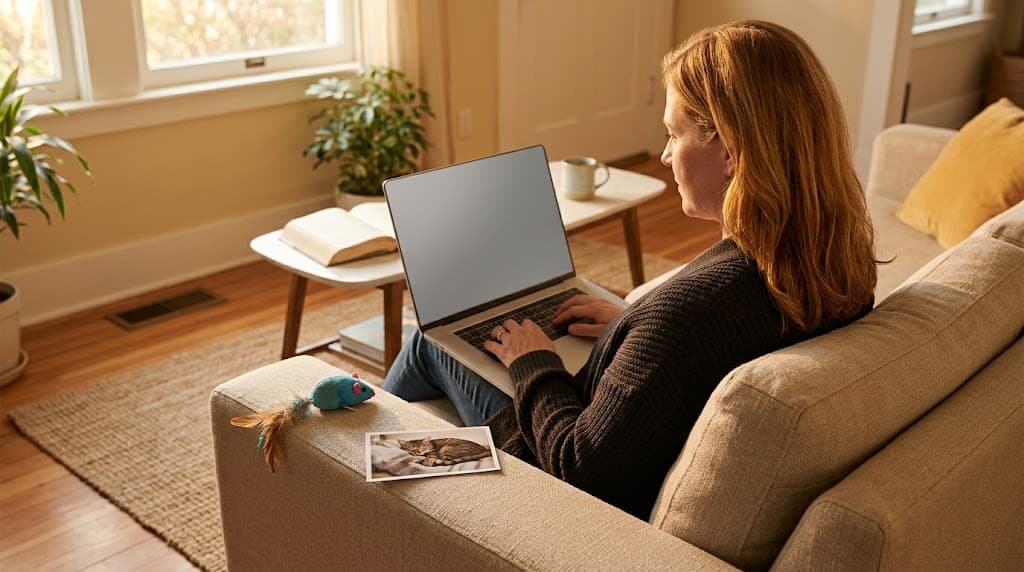
What should you put on a pet memorial page?
Start with something you recognize, rather than something that looks impressive.
Choose one photo you want to see again, one thing you would like to say to your pet, or one small incident you can still describe. These do not have to summarize an entire relationship. They only have to give you somewhere honest to begin.
If you are choosing a photograph, look beyond whether your pet is facing the camera. The half-visible tail, the toy tucked underneath them, or the person sitting just outside the frame might be what makes it worth keeping.
If you do not have photographs, you can begin with words. Remembering My Cat Without Photos offers ways to work with what you actually remember, without filling in details you no longer know.
Before adding anything you may eventually share, notice whether it includes someone else’s private information or photograph. Ask before including their contribution. You can leave something out without making the page less meaningful.
How do you start a Little Place?
For a new dog or cat profile, go to the PetMemorium homepage and select Start remembering. The setup asks what your pet called you, their name, whether they are a dog or cat, and their gender. Breed is optional.
Finish the setup with Yes, take me home, then follow the sign-in step if prompted. From your pet’s Home, open the card labeled [Pet Name]’s Little Place.
A new Little Place starts Private. Creating a pet profile does not publish a visitor page for everyone to see.
If your pet already has a profile, you do not need to create another one. When signed in, use My Pets, choose Talk to [Pet Name], and open their Little Place from there.
You can look around before adding anything. There is no need to fill every section in one sitting.
Give photos, words, and stories different jobs
You do not have to repeat the same tribute throughout the page. Each part of Little Place can hold something different.
Choose a photo for the opening
Use Choose a photo, then Upload a new photo, to add the image at the top of the Little Place. If you have already chosen one, the control becomes Change photo.
Pick an image that feels welcoming to you. It does not need to be a formal portrait or a photograph from your pet’s final days.
For this opening image, upload a JPEG, PNG, or WebP file. Upload it directly rather than expecting an existing profile photo to appear there automatically.
Use the owner note for something you want to say
The section From [Your Name], with love holds a note addressed to your pet.
Select Write a note to [Pet Name], write what you want to say, and choose Save note. You can edit this note later.
It can be brief. You do not need to introduce your pet to an audience or explain every part of your relationship. If you would like help finding that direct, personal voice, How to Write a Letter to a Pet Who Passed Away explores it in more detail.
Use the Photo Wall for pictures you want together
In [Pet Name]’s Photo Wall, choose + Add photos.
Think of this as a collection you select, not a place where every available image must go. A few pictures from different ordinary days can be enough to begin.
The Photo Wall does not currently have individual photo captions. When the story behind a picture matters, a photo-and-text Little Moment is the better place for it.
Use a Little Moment when a picture needs its story
Choose + Leave a little moment. You can add words, photos, or both, then select Publish.
Here is a fictional example of what that might look like:
You always sat on the lid of the puzzle box while we worked. We put it beside us to keep the pieces out of the way. You seemed to consider that an invitation.
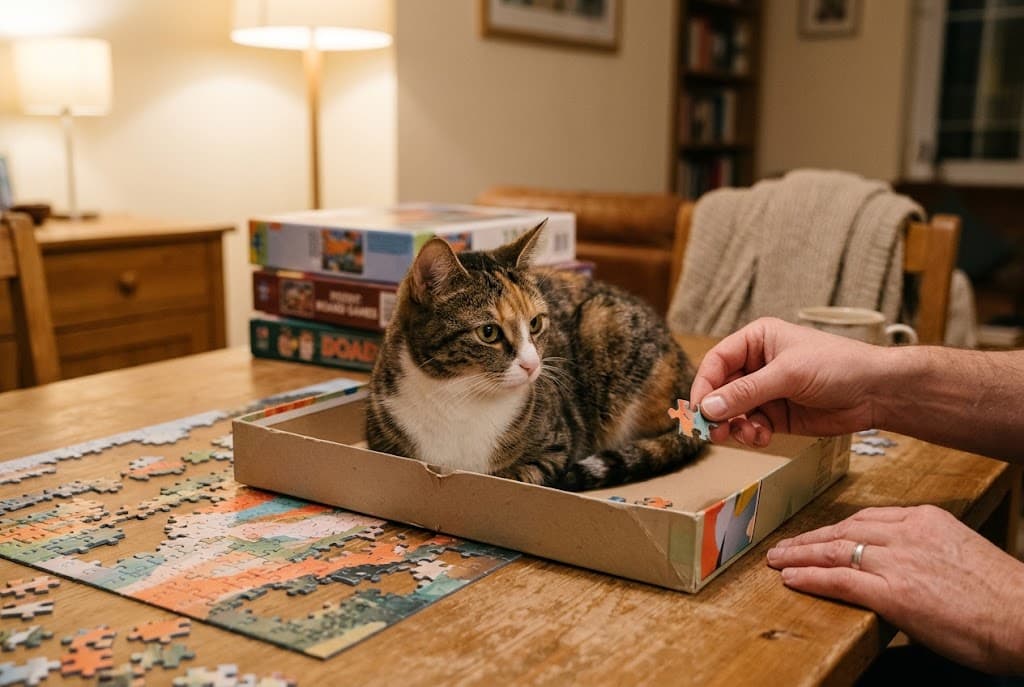
Beside a photo of that scene, those few sentences explain something a portrait alone would not.
Use your own incident, not the example. If you are unsure whether something happened every evening or only occasionally, keep that uncertainty in your wording.
A Little Moment can also be text alone. If you are remembering an earlier day, you can say so in the text; adding the memory today does not mean the event happened today.
Publish saves the Moment in your Little Place. It does not change a Private Little Place to Public. The whole space’s visibility setting still decides who can visit.
Who should be able to see it?
Before sending a link, open Who can see this Little Place?
There are three choices:
| Setting | What it means |
|---|---|
| Private | Only you can visit the Little Place. It is not offered for search indexing. |
| Share by link | Anyone who has the visitor link can visit. The page remains outside the site’s search-indexing setup, but the link can be forwarded. |
| Public | Anyone can visit. An eligible public root page can be made available to search engines; appearing in search results is not guaranteed. |
Sharing by link is not the same as restricting access to a named list of friends. Choose it with the understanding that someone could pass the link along.
To share a Private Little Place, select Share by link, read the confirmation, and choose Save & Copy Link. Once it is shared, Copy link lets you copy the visitor link again.
Choosing Public requires a separate confirmation. You do not need to make the page public to send a link to someone.
Visibility applies to the Little Place as a whole, rather than giving each Moment its own audience setting. Review the photos, your note, and the stories together before changing it.
You can return the space to Private. That closes visitor-page access, but it cannot retrieve a screenshot or copy someone has already saved.
Invite a memory, not an obligation
Someone who knew your pet may remember a detail you never saw: how your dog behaved on an afternoon walk with them, or what your cat did when they came to stay.
If you want to invite that perspective, use Invite friends to leave [Pet Name] a few kind words. If the Little Place is Private, the flow first asks you to confirm sharing it by link.
You might send a simple invitation:
If a small memory of her comes to mind, I’d love to read it. There’s no need to write anything formal.
Visitors can leave their name and a text note without signing in. They cannot add photos to your Photo Wall or publish their own Little Moments.
Their Kind Words wait for your review rather than appearing automatically. Open Review kind words, then choose Show in [Pet Name]’s Little Place or Keep private.
Here, Keep private refers to that individual note. It does not change the visibility of the whole Little Place.
Showing a note makes it visible to people who can visit the space. Before doing that, consider whether it includes something the writer expected only you to read. You can ask them, or keep it private.
It is also fine not to invite anyone. This can remain a place you visit alone.
Let the space grow without turning it into a task
You can return later to add a photo, edit your owner note, or leave another Little Moment. Something a relative remembers next winter can belong beside something you wrote today.
You do not need a posting schedule. You do not need to document every year equally. A quiet stretch with nothing new added does not make the space unfinished.
Keep your original photographs outside the page, too. The Library of Congress recommends keeping copies of important digital photos in different places. An online space can make selected memories easier to revisit and share; it should not be the only place you keep an irreplaceable file.
If you want to develop a particular story before adding it, How to Keep Your Pet’s Memory Alive can help you record the details accurately. You do not have to work through that whole process to leave one small Moment.
A page that feels like your pet does not have to tell everyone everything.
It might hold the photograph of the puzzle box, a note addressed to a familiar name, and one story someone else remembered. It might stay private.
What makes it personal is not how much you put there. It is being able to return and recognize something of the life you shared.